- Hauppauge Capture
- Windows Driver
- 3rd Party
- Manuals
- FAQ
- Media Center
- Xbox360
- PS3
- Set Top Boxes
- Troubleshooting
- Utilities
Hauppauge Capture for the HD PVR model 1212
Hauppauge Capture
Hauppauge Capture version 43356
Date: Dec. 21, 2025 | Size: 86 MB
Release notes |
Backup download site |
Previous version 38344
To install
- Plug your Hauppauge product into your PC or power cycle your Hauppauge product ( if this is an upgrade to an existing version of Hauppauge Capture)
- Click the download button above and 'Save' Hauppauge Capture to your PC (do not select 'Run')
- Once Hauppauge Capture is downloaded, run the Hauppauge Capture installation from your 'Download' folder
- If you see the message "Windows Protected Your PC, Windows Smartscreen prevented an unrecognized app ...", click 'More info' and 'Run anyway'. Windows Smartscreen is a new 'feature' in Windows 10 to prevent new updates from being installed automatically.
- After installation, you will be asked to reboot your PC. Please reboot.
- While rebooting your PC, if you have an HD PVR 2 or HD PVR Pro 60, power cycle by removing the power plug or USB cable from the back of the device for a few seconds and then plug it back in. This resets the device.
- Once your PC is rebooted, you will see the Hauppauge Capture icon on your Windows desktop. Run it.
Hauppauge Capture supports the following products:
- WinTV-HVR-9xx (S-Video and composite video)
- ImpactVCB-e and ImpactVCB
- HD PVR Pro 60
- HD PVR 2 (all models)
- Colossus 2 and Colossus
- HD PVR Rocket
- USB-Live2
- StreamEez-Pro
- HD PVR 60
- HD PVR model 1212
- Note: if you have the Colossus 2, HD PVR 2 model 1512 or the HD PVR 2 GE+, if you have 5.1 channel AC3 audio from HDMI or optical audio, your recordings will have 5.1 channel AC-3 audio
HD PVR Windows driver and accessory applications
Windows driver for HD PVR
This version is for Windows 10, 8, 7, Windows Vista or Windows XP. It is also for HD PVR users with third party Mac or Linux applications.
Please note: this loads firmware onto HD PVR (it must be run on a Windows PC). The third party Linux or Mac application is still needed.
To install:
Download and run to install. When the Windows driver has been installed, you will see a message Drivers have been successfully installed
Release Notes, version 1.7.1:
- Fixes the TS to MP4 converter problem on Linux/Mac
- Fixes Sony Vegas Load, Play and 2x FPS problem for progressive video
- Fixes intermittent PCR bad value
- Fixes installation issues on Windows XP
File name:hdpvr_1.7.1.30059.zip
Date: March 25, 2012
File size: 4 MB
This driver now supports Windows 7 Media Center. Your HD PVR can now be used in Windows Media Center as a TV recorder for cable TV and satellite set top boxes. Note: the installation for Windows 7 Media Center requires two parts: this driver plus the updates described under the "For Windows Media Center" tab above. First install this driver, then click on the "For Windows Media Center" tab above for instructions.
Notes:
This is a Windows driver only for Windows 10, 8, 7 and Vista (32 and 64-bit versions) plus Windows XP (32-bit only). For Hauppauge Capture for the HD PVR model 1212, please see the Hauppauge Capture page. For the Arcsoft Total Media Extreme application for HD PVR, you need your original CD. Updates to the TME application are available through Arcsoft Connect which can be found in Total Media Extreme.
This driver fixes A/V sync issues with some Dish Network and FIOS set top boxes. This release also fixes IR receive issues with third party applications. In addition, this release includes changes to fix flash memory corruption problems.
This driver fixes a problem with loss of video sync (which shows up as a "glitch" in the video) when the video source switches from NTSC to PAL or from HD to SD while recording. This problem only occurs when recording from a cable TV or satellite set top box, when the broadcaster changes video formats in the middle of a broadcast. This problem does not affect recordings made from an XBox360 or Playstation3.
This driver also fixes video flicker problem on European Sony Playstation3 and also addresses reliability problems returning from Sleep mode.
This version includes a record format which can be immediately played back on a Sony Playstation3. This is the .M2TS format.
Older HD PVR driver, which might work better with Sony Vegas
Accessory software for the HD PVR
WinTV TV Scheduler program
Program name: HDPVR_sched.exe
IR blaster configuration program
Name: irblast_28025.exe
Size: 414KB
Updated: 6/18/2010
IR remote control applet
Program name: IR32.exe
Note: the IR remote control does not operate in Arcsoft TME or Showbiz. If you are using Hauppauge's WinTV application with HD PVR, you can purchase a Hauppauge remote control here.
3rd Party Applications
HD PVR for the Mac:
Click here for information on HD PVR Capture, which provides HD PVR support for all Apple Macs:
www.hdpvrcapture.com
MythTV for the HD PVR
For Linux users, there is a version of MythTV which supports HD PVR. Please click here to get more information:
hwww.mythtv.org/wiki/index.php/Hauppauge_HD-PVR
Manuals
HD PVR QuickInstall Guide
HD PVR QuickInstall Guide
Tutorial on editing HD PVR recordings with Sony Vegas
Frequently Asked Questions about the HD PVR model 1212
What Operating Systems are supported by the HD PVR?
Microsoft Windows 10, 8, 7 (32 or 64-bit), Windows Vista or Windows XP with Service Pack 2 or later.
If you are using Windows Media Center, the latest HD PVR driver allows Windows 7 Media Center to use the HD PVR as a TV recorder. The recording is done in high definition and with H.264.
Do I need a PC to use HD PVR?
Yes, a PC or laptop is required to use HD PVR. The PC is used to both run the HD PVR application plus is the place where HD PVR recordings are stored. HD PVR does not have any internal disk storage.
HD PVR connects to a PC or laptop computer through a USB 2.0 port. The HD PVR recordings are stored on the PC's disk drive.
Can I connect the HDPVR passthru cables to a standard TV?
No, the pass thru cables only work on a TV with Component input (Red, Green, Blue) you can not connect using the Composite (yellow) standard definition input on the TV.
Can I use HD PVR with a Mac?
There are several third party applications which support HD PVR on a Mac. These applications are sold separately. One of them can be found at:
www.hdpvrcapture.com.
System Requirements
When you playback an HD PVR recording on your PC screen, you need a fast CPU and at least 256MB of graphics memory.
Processor Requirements (minimum):
- Dual core CPU 2.0Ghz or faster
- Graphics with 256MB memory (or greater)
- Sound card
- USB 2.0 Port
Using extended or inferior usb cables can lead to lockups and poor performance.
Can I use the HD PVR with Microsoft's Windows Media Center application?
With the latest HD PVR driver, HD PVR can be used as a video recorder for cable TV and satellite set top boxes in Windows 7 Media Center. Your Windows Media Center recordings will be made in high definition using H.264. The Windows Media Center electronic program guide operates as normal with supported set top boxes.
To try out the Media Center support for Windows Media Center, click the "Media Center Support" tab above.
Can I use the HD PVR with Linux?
Currently, there are no drivers available for Linux. But there is a beta version of MythTV which supports HD PVR:. http://www.mythtv.org/wiki/index.php/Hauppauge_HD-PVR
Also, VDR, a Linux based project, now supports HD PVR. Drop a note to dvb@flensrocker.de for more information.
Can I record high definition TV from a Cable TV or Satellite box?
Yes.
By connecting the Component video output from your high definition cable TV or satellite TV set top box to the component video inputs of the HD PVR, you will be able to record the TV programs coming from your set top box to the hard disk. Component video connections are normally the Red/Green/Blue connectors on the back of a set top box. Sometimes they are also called YPrPb or YCrCb connectors.
What type of recordings can I make with the HD PVR?
HD PVR encodes in real time directly to the hard disk in an H.264 format.
There are three formats which you can choose when recording a video:
- .TS which is a generic 'transport stream' compatible with many digital media players
- .M2TS which is compatible with the Sony Playstation3
- .MP4 which is compatible with the XBox360
All recording file types can be used to burn AVCHD Blu-ray compatible disc recordings.
The HD PVR files can also be burned onto a standard DVD+R or DVD+RW disk for playback in a Blu-ray disk player. Disc burning software is not included with the HD PVR.
Note: Some older models of Blu-ray DVD players cannot play AVCHD files on either DVD-R or DVD+R discs. Check your owner's manual to see if your Blu-ray player is compatible. If it is not, check with the manufacturer to see if a firmware update is available
What type of audio encoding is made with the HD PVR?
There are two ways of bringing audio into HD PVR: through the stereo audio jacks or through the optical audio connector.
When bringing audio in through the SPDIF optical audio jack, the audio is recorded in the format which is received. If the source provides AC-3 audio, the audio track is AC-3. There is no conversion of the audio format.
DTS audio is currently not supported.
Currently, the Arcsoft TME application will only support editing from the beginning or the end of a clip to preserve AC-3 5.1 channel audio. Any editing or cuts made in the middle segments of a clip will result in the audio being transcoded back to 2 channel audio.
AC-3 5.1 channel audio is preserved if you are creating an AVCHD DVD. If you are creating a standard DVD the audio will be transcoded to 2 channel. Creating MP4 files will also result in 2 channel audio.
Can I output files I've recorded with my HD PVR or other content from my PC back to an external TV monitor through the component video outputs on the HD PVR?
No, the HD PVR does not have the ability to play back recorded videos to an external monitor. The component video outputs act as a pass through for live video streaming from your video source through the HD PVR back to your TV monitor. The power of the HD PVR must remain in the on position in order to pass the video through to the external TV.
Can I use my Hauppauge remote control with the HD PVR?
No. The Hauppauge remote control is not used with the HD PVR. But if you are using some 3rd party software applications such as SageTV or GB-PVR with the HD PVR, they can use a Hauppauge remote control. You can purchase a Hauppauge remote control from the Hauppauge webstore at: webstore_remote.html
Can my PC go into hibernate or sleep mode when using HD PVR?
The current driver for HD PVR does not allow your PC to go into Hibernate or Standby mode when it is either recording or previewing video.
Video in preview windows has incorrect colors?
Most of the time this is caused by the display adapter, make sure your video card meets the minimum requirements.
Also try updating to the latest drivers supplied by the manufacturer.
Video is jerky or broken up while capturing?
Most of the time this is caused by the display adapter, make sure your video card meets the minimum requirements.
Also try updating to the latest drivers supplied by the manufacturer.
I get a black screen in the capture window when using the component input?
Some set top boxes will disable or turn off the component output if the HDMI or DVI output is being used. Check to see how you have your Television connected to your set top box.
Audio pass through does not work
In order for the audio pass through to operate correctly you need to configure the settings in the Total Media Extreme application. To do this follow the installation guide to install the HD PVR drivers and the Arc Soft Total Media Extreme software. When finished power on the HD PVR and open the Total Media Extreme software and click on the "record video" Icon, this will open the Capture module. Choose the audio input from the drop down menu ( RCA, SPDIF), once configured the HD PVR will retain these settings. Note: the HD PVR must be powered on for the pass through to operate.
Does the captured transport stream contain closed caption data?
No, currently none of the VBI is captured in the stream. This feature will be added some time in the future.
"No IR Blaster hardware found" when opening "Blaster config" program.
I heard that the REV E1 HD PVR will correct all of the problems with AC3 audio?
This information has been spread on user forums, however, Revision C3, D2, and E1 revisions are all functionally equivalent, and will address the same issues.
HD PVR may lockup and require a power cycle
If IR learning is performed with the audio mode set to SPDIF. Launch TME and set the audio mode to "RCA back or front" before attempting to learn IR codes using the supplied "BlastCfg.exe" tool.
HD PVR currently supports Dolby Digital (AC-3) and PCM
Audio capture is via SPDIF (optical audio input). The audio format is "passed through" to the recording. In other words, if your source includes AC-3 audio, this audio will be used in your recording. If you have a two channel audio source (PCM audio), it is converted to 2 channel AC-3.
DTS audio is not supported at this time.
A/V sync issues (using optical audio in) with an AT&T Uverse set top box
A recent update by AT&T results in an A/V sync issue using optical audio input to the HD PVR. We are currently working with AT&T on a solution, in the meantime, you can use RCA audio in which will work correctly.
What resolutions and bit rates are supported using the HD PVR?
- Record high definition video at up to 1080i resolution, 720p or VGA/D1
- Record at datarates from 1Mbs to 13.5Mbs, constant and Variable Bit Rate
- Make Blu-ray format AVCHD recordings, so you can burn your TV recordings onto a standard DVD disk (up to 2 hours of video at 5MBits/sec) and playback on Blu-ray DVD players
What file formats are created by recording with the HD PVR?
The default formats you can record in are: .TS (transport stream AVCHD Blu-ray format), .M2TS and .MP4.
How much disk space will it take up when recording?
Approximately 2 GB per hour at 5Mb/s setting. Approximately 4GB per hour at 9Mb/s setting, and 6 GB per hour at 13.5 Mb/s setting.
Where can I record the files to using the HD PVR and can I use it independently?
The HD PVR requires a PC (see minimum system requirements under product specifications) to operate. You may then record to any of the hard disk drives installed or connected to the PC, including external drives.
Can I use a longer USB cable with my HD PVR?
It is not recommended to use a different USB cable other than the cable provided with the device.
Can I burn a Blu-ray disk with my HD PVR?
No, you cannot burn a Blu-ray Disk, however you can burn a standard DVD that will be Blu-ray compatible (when making AVCHD recordings), and play on a blu ray player.
I get a black screen in the TME capture module and no output to my TV when I connect my Xbox 360, PS3 to the HD PVR.
Make sure you're gaming system is not set to 1080p. The HD PVR does not understand this format. Please set the output resolution to 1080i or 720p. Please see the appropriate setup instructions for your game console:
See PS3 setup instructions tab above
See Xbox360 setup instructions tab above
If I record my game play can I uploaded it to the internet?
Yes. Video sites such as YouTube may require a certain format such as MPEG, .AVI, MPEG4, so be sure to convert the file to the appropriate format in such cases. If you are editing the file using the Total Media Extreme applications built in editor, this allows you to create a project file that can be burned to a blu ray compatible DVD. Once on DVD, you would then need to rip the DVD back to hard disk and use a third party editor to convert it to the proper format for sites such as YouTube. (or simply use a 3rd party editor to edit the original file).
What are the power supply specifications for the power adapter that is included with the HD PVR?
The power adapter is 5V 2 amps.
Can I push video encoded with Colossus or HD PVR through VLC?
Yes. If you are a developer, you can bring H.264 encoded video in from either Colossus or HD PVR into VLC so it can be streamed out from your PC. Microsoft provides a sample network transmit/receive filter set in their DirectX SDK.
Here is the way this works:
The HDPVR encoder filter produces transport packets. If you (the developer) create a small 'network push' filter that can receive the transport packets in the directshow graph, then forward them to a udp network address and port (for example udp://192.168.1.1:1234), then VLC is capable of receiving and rendering them.
Start VLC from the command line with: vlc udp://192.168.1.1:1234
Files crash when I attempt to edit using Sony Vegas.
This issue is with progressive clips captured by HD PVR in either TS or M2TS formats.
Solutions
- If using Arcsoft Showbiz, record use MP4. Then edit with Vegas.
- If using Arcsoft Showbiz or TME, use the 1.5.7 driver from the HD PVR Windows Driver page.
No audio is detected when editing HD PVR or Colossus recordings in Sony Vegas
Sony Vegas does not detect non-AC-3 audio in .TS or .M2TS files. When recording videos in the Arcsoft Capture module, make sure AC-3 is selected under Format settings. If using HD PVR with Sony Vegas, you must use either optical audio (Dolby Digital AC3 audio format) or you must record in MP4 format with AC-3 audio.
HD PVR support for Windows Media Center (beta version)
The HD PVR support for Windows Media Center allows you to use the HD PVR to watch, pause and record high definition TV under Windows 7 Media Center from a cable TV or satellite set top box. It operates in a similar way as other Hauppauge TV tuners for Windows Media Center, but the HD PVR records in high definition using H.264 encoding.
Note: the Media Center support for HD PVR is for Windows 7 only.
Release and installation notes
Installation package
Size: 6.6 MB
Date: Oct. 4, 2011
IR blaster setup
Make sure "Use internal blaster" is selected
Recording high definition video from an Xbox 360
Note: Before connecting your Xbox 360 to the HD PVR or Colossus, connect it to your HD TV set to make the settings. By default, the Xbox 360 will be set to 1080p and HD PVR and Colossus will not work with this resolution. You will need to change your Xbox 360 to 480p, 720p, or 1080i.
Connection diagram
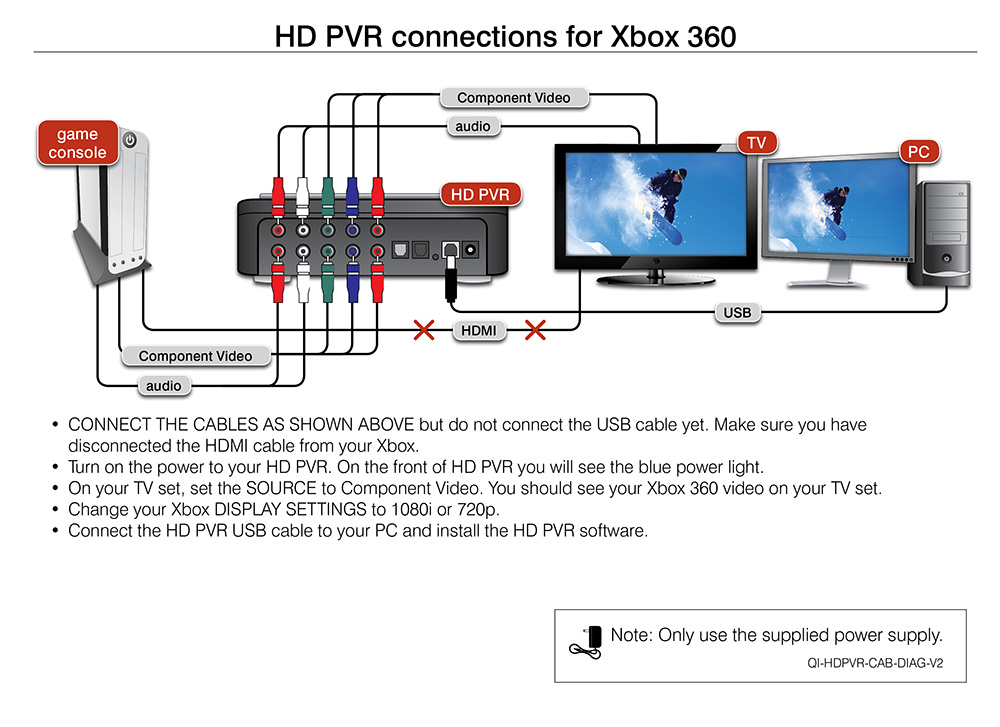
Click for larger image
Watch this YouTube video for Xbox setup instructions, or look below for screen shots
HAUPPAUGE HDPVR TUTORIAL - SONY VEGAS SETTINGS
Step by step instructions for the Xbox 360
First, turn on your Xbox 360 and navigate to the main menu.
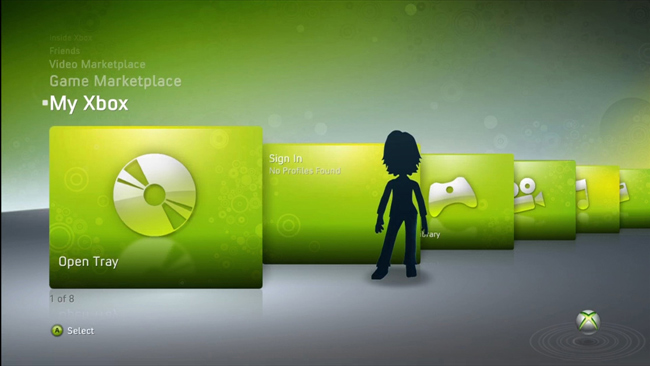
Navigate to the last menu on the right and go into System Settings.
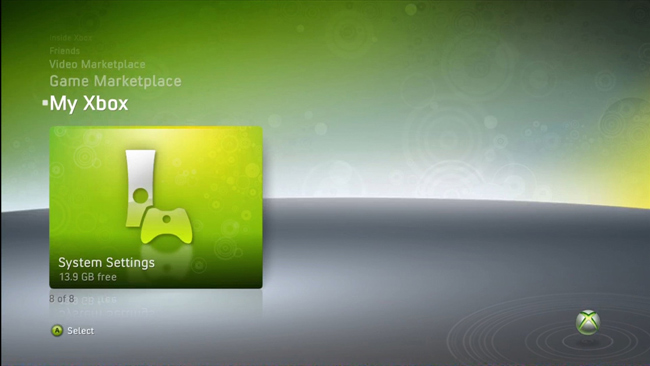
Go into Console Settings

Go into Display.

Go into the HDTV Settings.
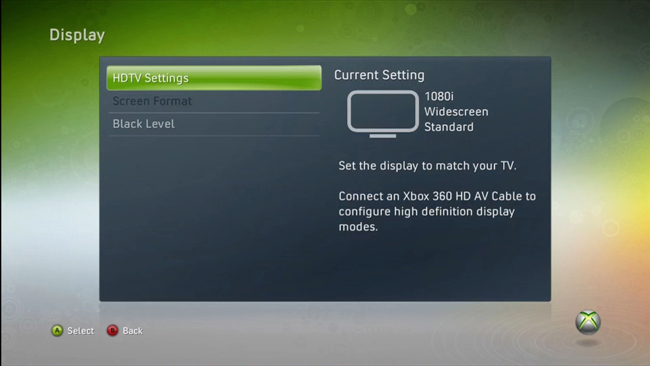
Now select the resolution you want.
The HD PVR will only work with 480p, 720p, and 1080i. If your system is currently set to 1080p. change it to 1080i.
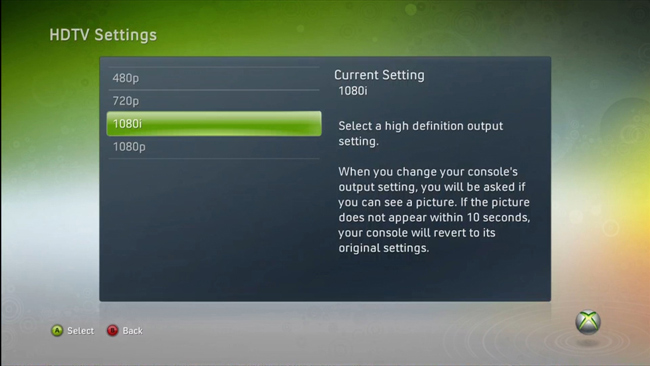
When you select the new resolution, you will be asked if you want to keep the new settings. Please select Yes, keep these settings.
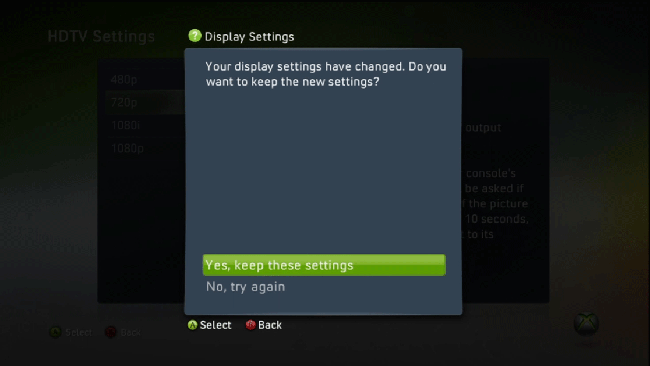
You are now done.
Please turn off on your Xbox 360 and connect it back to your HD PVR or Colossus using component cables.
Recording high definition video from a Playstation3
Note: Before connecting your PS3 to the HD PVR or Colossus, connect it to your HD TV set to make the changes to the PS3 video modes settings. By default, the PS3 will be set to 1080p and HD PVR and Colossus will not work with this resolution. You will need to change your PS3 360 to 480p, 720p, or 1080i.
Connection diagram
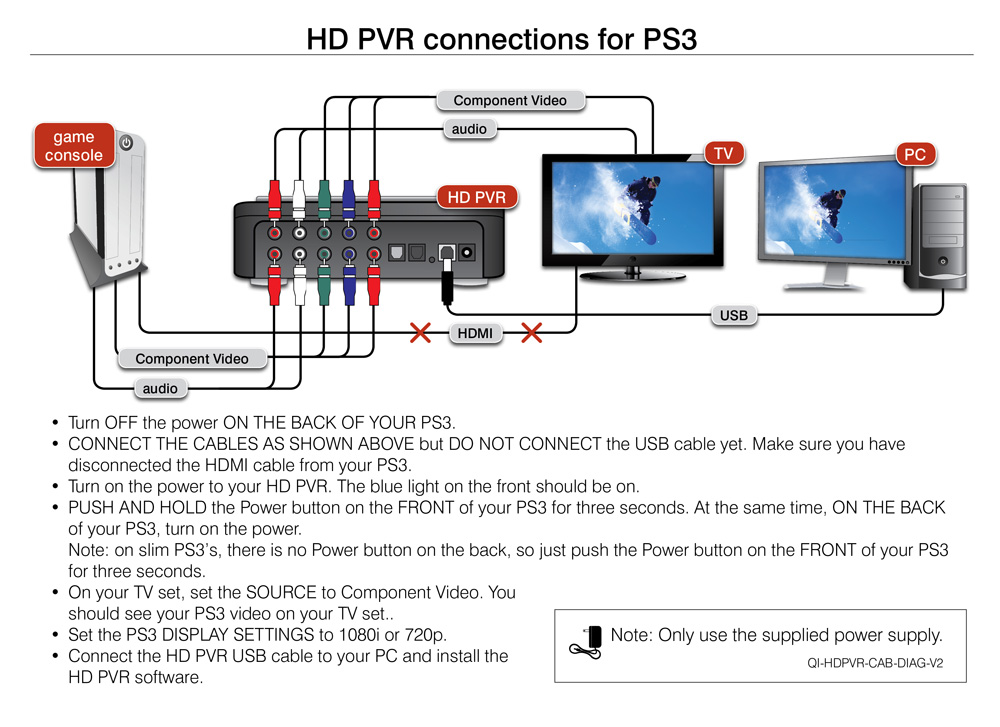
Click for larger image
Watch this YouTube video for setup instructions, or look below for screen shots
Step by step instructions
Before connecting your PS3 to the HD-PV or Colossus R, you must set the proper PS3 video output. These are instructions on how to do this.
First, navigate to the Settings column on the PS3 main screen.
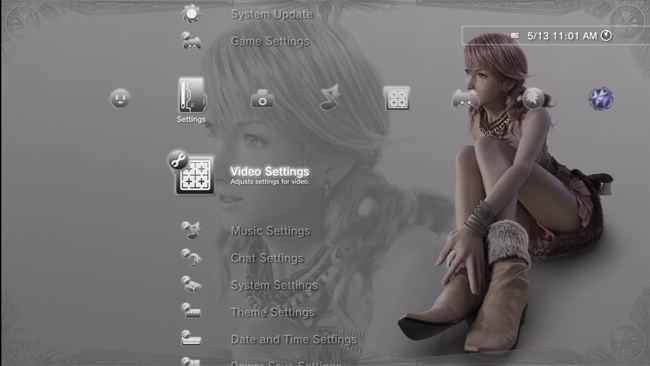
Scroll down to Display Settings
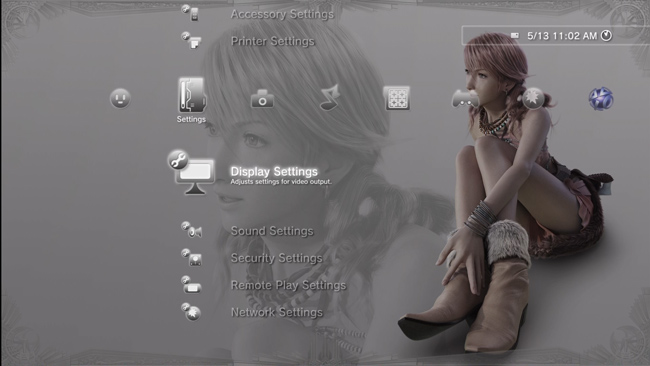
Select Video Output Settings.

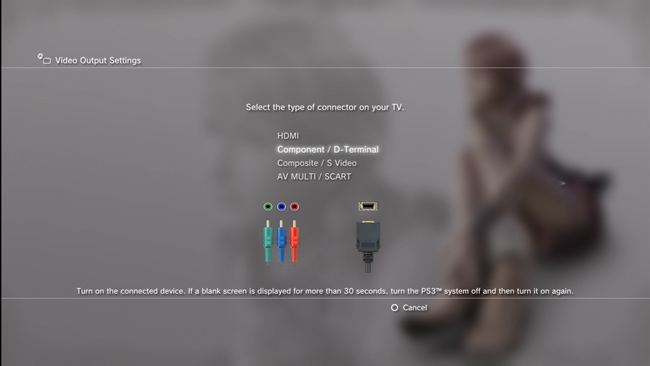
Note: You should have your component cables attached to your TV. If not, please take a moment to attach the component cables to the TV.
Select Component/D-terminal. You will then be given a confirmation and after proceeding, you need to change your TV to the component video.
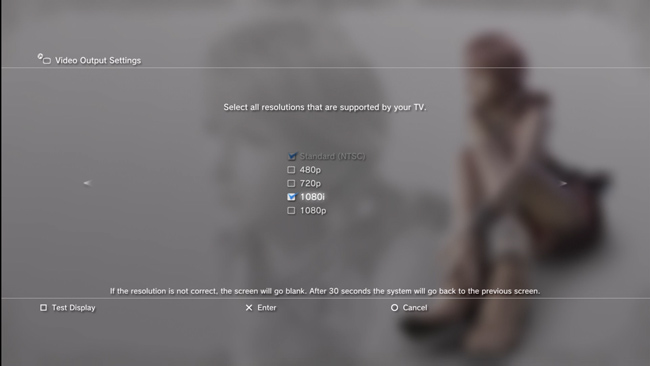
Next you will receive a screen were you will select the desired input resolution.
HDPVR and Colossus can accept up to 1080i so select 1080i. You can also select 480p and 720p.
After selecting 1080i, hit X Enter to go to the next step.
Confirm that you have selected 1080i by clicking X Enter.
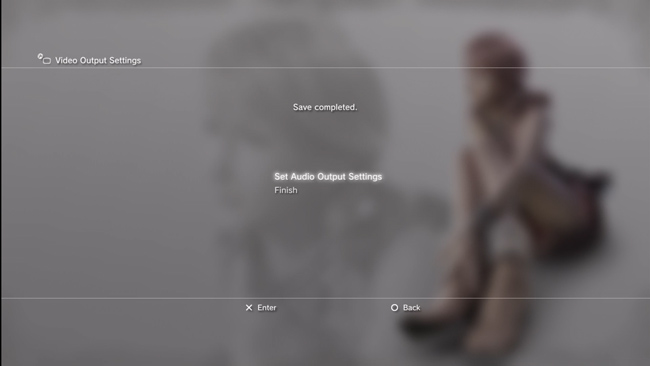
Next you will be prompted to set up the Audio Output Settings and then click X Enter.
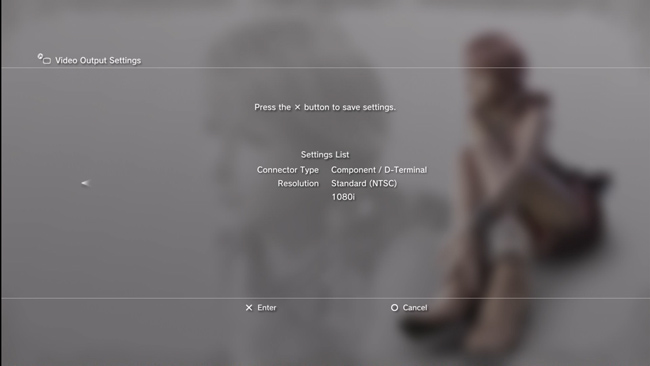
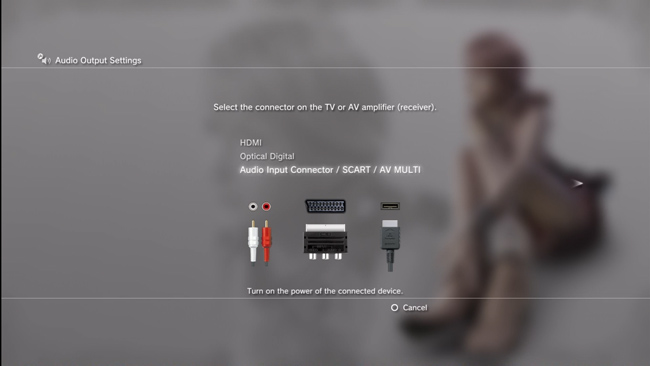
Here you will select either audio input connector or optical digital (cable sold separately). Chose the way audio will be connected to the HD PVR/Colossus.
You will be shown the audio settings. Click X Enter to continue.
If you select Audio input connector you will be prompted to finalize the setup.
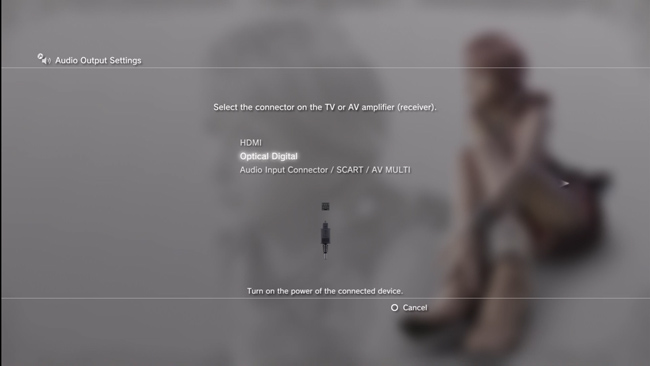
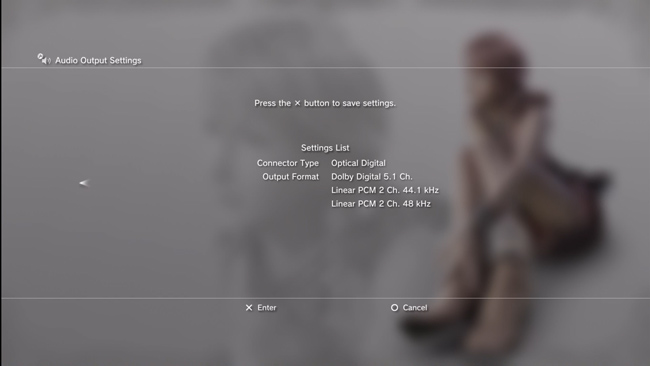
If you have selected optical you must select the compatible formats either PCM 2ch or Dolby 5.1.
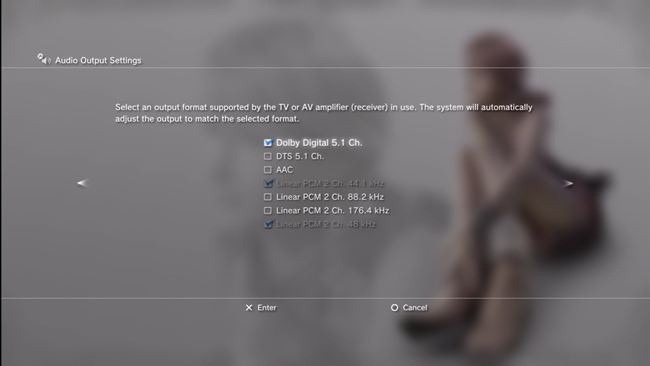
After you confirm your audio settings, you may now power down the PS3 and connect it to your HD PVR / Colossus.
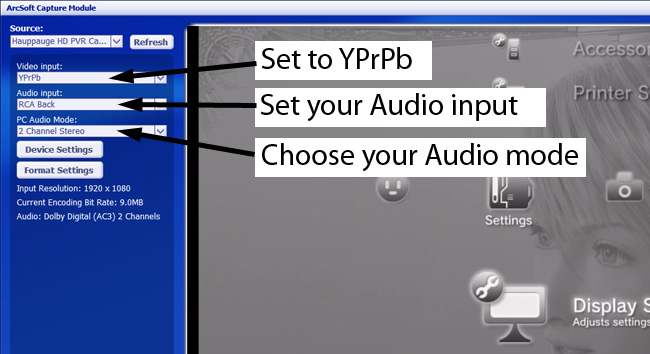
When you open the Arcsoft capture module, select YPrPb for you video input and either RCA back (if you selected audio input connector) or S/PDIF (if you chose digital optical) for your input audio.
Then capture some high definition video!
Connections to a Cable TV or Satellite set top box
Connecting to a set top box with Component video and stereo audio
Connecting to a set top box with Component video and optical audio
HD PVR Gaming Edition and uploading videos to YouTube
To change the upload resolution for Youtube, click the Option button in Showbiz (upper right hand corner) and select Preferences in the dropdown menu. In the Preferences window click on the tab that reads Others. At the bottom of this tab will be the upload resolution to default to when uploading clips (by default set to 240p).
Troubleshooting the HD PVR
Note: There appear to be a number of HD PVR users who are extending their USB cables because their computer is located a distance from HD PVR. This can potentially cause problems such as "no device detected" or a black screen in TME Capture or bad video recordings. If you are using a long USB cable and are having problems, do an experiment and see if you problem goes away by connecting HD PVR to your PC with the USB cable supplied with HD PVR.
Inputs and outputs and how they are configured
The HDPVR was designed to pass through any input to the component output of the device. So whichever input you choose (composite, svideo or component) will be routed to the component out.
NOTE: if you are using composite or S-Video input, the Component video output will be standard definition even though you are using component cables.
Here are some troubleshooting tips:
- The HD PVR needs to be powered on for pass thru to work.
- After a new installation, composite or S-Video input will be set as the input in TME. (the default was changed to component video in HD PVR driver version 1.6.29207 or higher)
- In order to set HD PVR to the input you want, you must connect the USB cable to your PC (the HD PVR Windows driver must be loaded) and run the TME Capture module. Choose your input.
- After you set the input and you power off the HDPVR, the input you selected will stay until you change it.
- SPDIF is digital audio which will support up to 5.1 and also has a pass through.
Black screen in TME Capture
- First, check that HD PVR is detected by the ArcSoft TME Capture Module. You should see Hauppauge HD PVR listed under Source.
- Next, check input make sure the video source setting is correct for your cabling. Do you see a valid resolution and bit rate for source? Try changing the resolution of the source .. remember 1080p is not supported.
- If using SPDIF as the audio input, there will be no video (black screen) if there is no input from the SPDIF cable (Note: analog audio will not cause loss of video if audio is not present.)
- If you have a Resolution and Bit rate shown, check “enable preview” setting.
- Try to capture. If capture is successful the problem could be a video rendering problem ( video card drivers, hardware acceleration…) If capture fails, there is something wrong with the video or audio input.
Black screen in TME Capture with Video Game Systems
- Most problems here are basic cabling and settings in game consoles. For correct cabling instruction, please refer to: For Xbox360 or For PS3.
- Also, if you choose the wrong video source in Arcosft TMW, you will get a black screen. For example, if you connect Component video but Arcsoft Capture is set for S-Video, you will get a black screen.
- PS3 or Xbox 360: do you have the correct A/V cables? The PS3 and Xbox 360 do not include the A/V Component cables. These need to be purchased separately.
- Check and make sure the Red, Green and Blue cables are connected from the game console to the A/V Input on HD PVR.
- As a test to make sure the cables are correct and are working, connect the game console directly to the HD TV set with the same video game component cables. If you see your game on the HD TV set, then the cables are o.k.
- Check that no HDMI cable is connected to the game console. On the Xbox 360, if the HDMI cable is plugged in, the Xbox turns off the Component video. Once they see the video on their HDTV through the component input verify that 1080p is not selected. Once you confirm this works move the video game component cables back into the HD-PVR component inputs. Now recheck the video and audio source inputs in TME.
- A lot of times we find people who have changed the settings in TME. It might be in composite or svideo, maybe SPDIF audio instead of RCA Back.
Pass through problems
Pass through problems, such as a black screen on your TV set (even though you can record videos), are usually basic cabling and settings in TME. Check your cables!
The best way to proceed is:
- disconnect the game console from whatever it is connected to …. all cables (component, audio, HDMI)
- then start by only connecting the game console to the HDPVR using any cable set
- Run TMe and make sure you can see video on your PC screen
- Once you know HD PVR can preview video and capture, connect the pass through to your HD TV set
If all input and pass through connections are correct and pass through is still not working, check your HD TV for correct input source. If input is correct, try changing input resolution of source to HDPVR.
Video/ Audio Stutter
If you have stutter in your preview window, check that system specs meet the minimum required.
Preview good but stutters in playback on your PC screen: this normally means your PC or graphics card is too slow. check the video card specs.
Random lockups
- Try a different source
- Try a different USB port
- Don't use extra long USB cables
- If you are using a hub, remove it.
- Remove other USB devices if they could hog bandwidth (such as a USB camera)
Prodinfo: get information on your Hauppauge TV tuner
Prodinfo.exe is a program you can run which will extract information about the WinTV product you have installed such as model and serial number, MAC address, revision, and features which can be used to identify the exact model of your product. The driver for the device must be installed in order to run Prodinfo.exe
HCWClear
HCWCLEAR.exe is a program you run to remove all driver and files that were installed with the installation of the WinTV program.