Latest WinTV-PVR-150/500 installation CD
Installation note:
A valid WinTV application CDROM will be needed to install this WinTV v6 version. Any WinTV-NOVA version 4x, WinTV-PVR, WinTV version 6 or WinTV v7 application CD can be used during the install. If you do not have your original WinTV CD-ROM but would like to update to this WinTV v6 version, you can purchase a new CD on the Hauppauge webstore.
Note: This is a single file which includes the driver, the driver update, middleware, video decoder and WinTV v6 applications and all accessories. This file is larger than the individual pieces, but should be easier to install since it is in one file.
Note: this package is for Windows XP, Windows XP Media Center Edition, Windows Vista and Windows 7.
Installation Procedure
Step 1 - Software download |
|
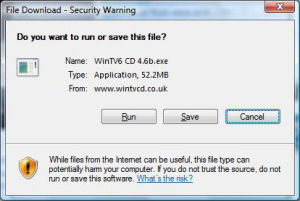
Please click on the download link from your products support page, you will be given an option to Run or Save the file., |
 |
Once the file has finished downloading, the self extracting wizard will begin: |
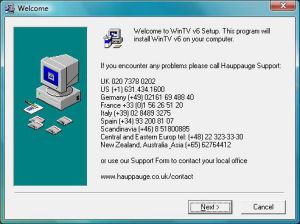 |
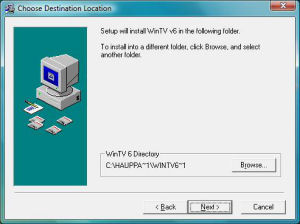
Click Next then select a path where you wish to extract the files (we recommend leaving this at its default setting), the Hauppauge software and drivers will be extracted automatically to your computer. |
 |
Step 2 - Previous software removal |
|
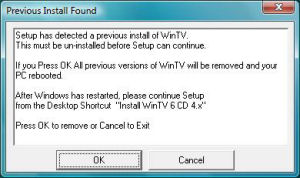
If you have a previous version of the software installed you will be prompted to uninstall it, click OK to automatically do this. |
 |
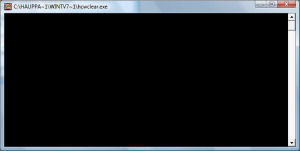
The 'HCWClear.exe' application will start up and begin uninstalling the previous software, any error messages or notes will be shown in the black box. |
 |
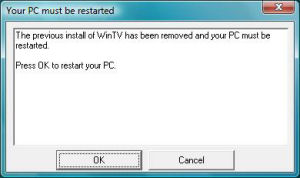
Once complete you may need to restart your computer, press 'OK' to automatically restart your computer. |
 |
Step 3 - Installation of the drivers |
|
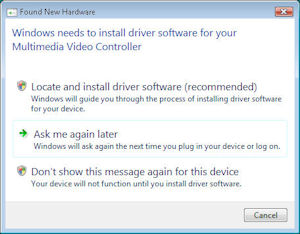
After Windows reboots, you will see the Windows Found New Hardware Wizard, please select 'Ask me again later' in Vista or simply cancel this wizard in XP (it may appear several times, repeat this each time the wizard is shown): |
 |
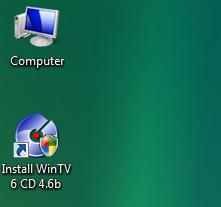
Once you are at your desktop, double click on the link to the install application: |
 |
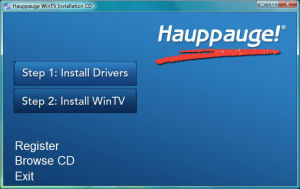
This will open up the Hauppauge install application, click 'Step 1: Install Drivers': |
 |
This will then open up our driver installation program and automatically start installing the drivers for your product: |
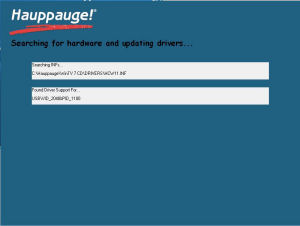 |
Once complete click on the bar to continue. |
 |
Step 4 - Installation of the WinTV Software and other applications |
|
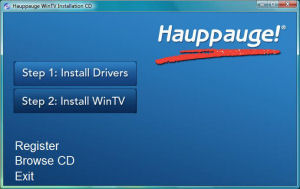
In the Hauppauge installer you will now need to click 'Step 2: Install WinTV': |
 |
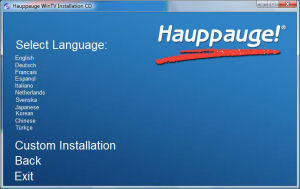
Select the language you wish to install from the list. Note: If you wish to customize the install list click on 'Custom Installation'. |
 |
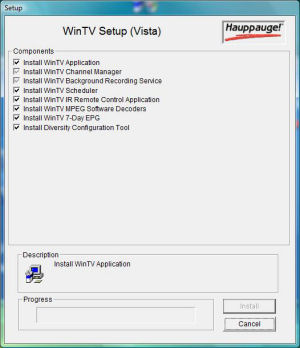
The applications relevant to your product will now be shown and will begin to install: Note: Installing may take some time as it is updating other system components, please be patient. Once complete click 'OK' then click 'EXIT'. |
 |
Driver only for the WinTV-PVR-150 & WinTV-PVR-500
WinTV driver only
Note: This driver can be used with Windows XP, Windows Vista or Windows 7.
Note: This driver can be used in a 32bit or 64bit system with less than 4gigs of ram
To install:
- Download and unzip to a directory you will remember
- Run HCWDriverInstall.exe to automatically install the driver
Name: pvr-150-500_2_0_48_25037_whql.zip
Accessory software for the WinTV-PVR-150 & WinTV-PVR-500
Accessories included on CD download.
None at this time.
3rd Party Applications
SageTV: Intelligent PVR Software : SageTV is personal video recording software with an integrated EPG for use with your WinTV-HVR-950, WinTV-PVR-150 or WinTV-PVR-500. With SageTV, you can pause live TV, rewind and fast forward, and conveniently record your shows. SageTV also provides an Integrated Programming Guide with no subscription fees listing all upcoming programs for the next 14 days based on your cable or satellite provider. SageTV is the only PVR application for the PC that introduces Intelligent Recording and Scheduling based on your past viewing habits. SageTV interacts with your WinTV-PVR to provide you with the ultimate 24/7 PVR application for your PC. SageTV also support the use of multiple WinTV-PVR's, recording multiple channels at once!
Linux support for the WinTV-PVR-150 and WinTV-PVR-500 has been made available by the ivtv project in form of kernel modules to be built against your running kernel. Downloads and documentation are available at http://ivtv.sourceforge.net/
SnapStream Beyond TV™ 4 : "Proving that a PC can rival TIVO" !
- Supports the latest Hauppauge TV tuners: Supports the WinTV-HVR-950, WinTV-PVR-150, WinTV-PVR-150MCE and dual tuner WinTV-PVR-500 with remote control and more.
- Record more than one show at the same time or watch one while recording another with multi-tuner support
- Record an entire TV series Record one show, every episodes, or only new episodes of your favorite show
- Enjoy the full screen interface Choose shows and setup recordings from the comfort of your couch
- Easily find shows using the integrated Electronic Program Guide (EPG)
- Record and watch HDTV shows with over-the-air HD support on the WinTV-HVR-950
- Skip commercials with SmartSkip™
- Find shows faster with the new browse by category feature, or search by title or keyword
- No subscription fees
- Schedule recordings away from home via the Internet or a web-ready phone
- Download FREE 21-day trial today
WinTV-PVR-150 & WinTV-PVR-500 Manual
What Operating Systems are supported by the WinTV-PVR-250/350?
The WinTV PVR 250/350 will function under Windows98SE (Second Edition), WindowsME, Windows2000, and Windows XP.
It will not function under Windows95, NT 4.0, Windows XP64 or Embedded and is not currently supported under Windows Server2003, or Linux.
For previous WinTV owners before installing the WinTV-PVR-250/350
Error Code 10: This device cannot start
Try moving the WinTV card to a different PCI slot in the system. If there are any resource issues with the WinTV card and any other device in the system, this would reassign the resources for the WinTV.
Open the Control Panel - System - Advanced. In the Performance section click on the Settings button, then the Advanced tab. In the Memory Usage section located here, choose Programs instead of System Cache.
Make sure that the latest drivers for your VGA card are installed as well.
Black screen issues
The main causes for black screen are "Decoder Issues", no sound card installed in the system, and video cards that do not support "Overlay".
The following information is ONLY a workaround for video cards that do not support Overlay.
Symptoms of non-overlay support:- Black screens when channels have been scanned
- Lockups after channel scan or adding a channel
- Errors when changing MPEG quality level
- Can only display video in MPEG1 setting
You can set the WinTV to run in Primary display mode to get the video in the WinTV2000. You must have the latest version of the Hauppauge Software decoders and version 1.6 or higher of the WinTV-PVR-250/350 drivers.
Open the Primary applet located in the Start - Programs - Hauppauge WinTV program group. Select Force Primary and close the Primary program out. Open WinTV and try adding a channel and see if the video and audio play. Also verify that you can change the MPEG quality settings in the Pref - Movies - MPEG settings.
Remember, this is just a workaround; the PVR 250/350 is designed and meant to work in Overlay. You may need to upgrade the video card drivers or change your video.
Also make sure that the Hauppauge Software decoders have been installed. These will be listed as Intervideo Filter SDK for Hauppauge in the Add Remove Programs section of Control Panel. If they are not listed here, please reinstall from the SMD folder of the WinTV Installation CD.
The drivers for your Sound card should also be updated and installed properly.
Also, you can try recording a short MPEG1 VCD file and play it back to see if the decoder is working properly. If you can record and playback a VCD file, then the problem would indicate a Conflict with pre-installed decoders.
Does the WinTV-PVR-250/350 do MPEG decoding as well as encoding?
The WinTV PVR 250 has MPEG encoding hardware only. It will use software decoding for the playback and pause functions.
The WinTV PVR 350 has Hardware decoding only on the video output. Local playback (on the PC monitor) is still software decoding.
Random lockups with Dual CPU or Hyperthreaded systems
As a workaround, setting Affinity for the WinTV2k application to use only one CPU will sometimes work. To do this, while the WinTV application is open, Press CTRL+ALT+Delete on your keyboard to open the Windows Task Manager. In here click on the Processes tab and look for the WinTV2K.EXE listing under Image Name. Right click on it and choose Set Affinity. In here it will list the active CPUs. Uncheck the highest number CPU. If they are numbered CPU 0 and CPU 1, uncheck CPU 1. This will make CPU 0 the only one the WinTV will work on.
Microsoft is aware of these types of issues with capture devices. If you would like to read the Microsoft Knowledge base article concerning the hyper-threading fix you can click the following link. There should be a fix for this in Service Pack2:
http://support.microsoft.com/default.aspx?scid=kb;en-us;817589&Product=winxp
Disabling Hyper Threading in the Bios should also allow the PVR250/350 to function properly. This should only be tried as a last resort.
WinTV works fine until I restart my computer
Initial installation was smooth, and finished without any problems. WinTV and all of its functions work fine until the system is rebooted. When windows comes up again, it recognizes the card as a new device and must be reinstalled in order to work again.
Under XP, a possible workaround would be to delete all the Prefetch files located in the "C:\Windows\Prefetch" This could also be caused by resource conflicts. Try moving the WinTV card to a different PCI slot. Windows will detect the card when you reboot and should reassign the resources for it.
Can I record one show while watching another with the WinTV-PVR-250/350?
What is the difference between the WinTV-PVR-250 and 350 models?
Both models will have the same capture and TV functionality. The PVR 350 adds FM radio, as well as a video output(S-video/Composite video), so you can output captured MPEG videos to an external monitor of VCR.
Video out is only S-Video or Composite, there is no RF output.
When Video Out is enabled, turning off the local playback will lower CPU usage considerably. To access that option, click and hold right mouse button then go down to video out and uncheck Local Playback. You can also turn off Video Out in the same menu selection.
Can I view Closed Captioning with the WinTV-PVR-250/350?
Data Invalid error when installing the driver on Windows XP
Data Invalid error when installing the driver on Windows 2000.
Failed to create TV window. hTV=0xd6a950 Err=1
"There is no common media type between these pins" HCWSnapshot, Video Renderer
This error will occur if Overlay is not working properly on your system. Your VGA card MUST support Overlay in order for the WinTV-PVR-250/350 to work. Make sure your graphics card supports Overlay. Also make sure that there are no other programs running that require overla, ie; Windows Media Player. These programs will take over the Overlay surface and prevent the WinTV PVR 250/350 from working.
This error may also come up if the Software Decoders have not been installed. Reinstall the software codecs.
Also, be sure that the VGA cards hardware acceleration settings are on Full. (control panel/display/settings/advanced).
"WinTV Initialization Error.hTV=10" when trying to open the WinTV program
This error will only come up if the VFW drivers have been installed on the system. For example, if you had a different model WinTV installed that requires VFW drivers and installed the PVR 250/350 software over it, you may get this error. You may also get this error if you have downloaded and installed the PVR PCI updated drivers mistakenly.
The WinTV PVR 250/350 DOES NOT USE VFW drivers. To correct this error, run the PVR48xxx.exe file from the PVR folder on the WinTV-PVR-250/350 installation CD.
Also, if this error is seen during the driver installation procedure, try reseating or moving the WinTV board into another PCI slot(s), making sure that it is firmly in place.
Error in MSVCRT.DLL when trying to open the WinTV program
DVD MovieFactory: "Error: cannot read from file" when creating VCD
ULead DVD MovieFactory application update
The latest updates to MovieFactory can be found at: www.ulead.com/tech/dmf/dmf_ftp.htm
A fix for a hang when burning VCD's is now available.
DVD MovieFactory: "Failed to initialize capture driver"
Third party capture applications not supported
Hibernate other Power Management options not supported
Can I edit the captured Videos created with the WinTV-PVR-250/350?
Yes, you can edit the MPEG files.
Prodinfo: get information on your Hauppauge TV tuner
Prodinfo.exe is a program you can run which will extract information about the WinTV product you have installed such as model and serial number, MAC address, revision, and features which can be used to identify the exact model of your product. The driver for the device must be installed in order to run Prodinfo.exe
HCWClear
HCWCLEAR.exe is a program you run to remove all driver and files that were installed with the installation of the WinTV program.